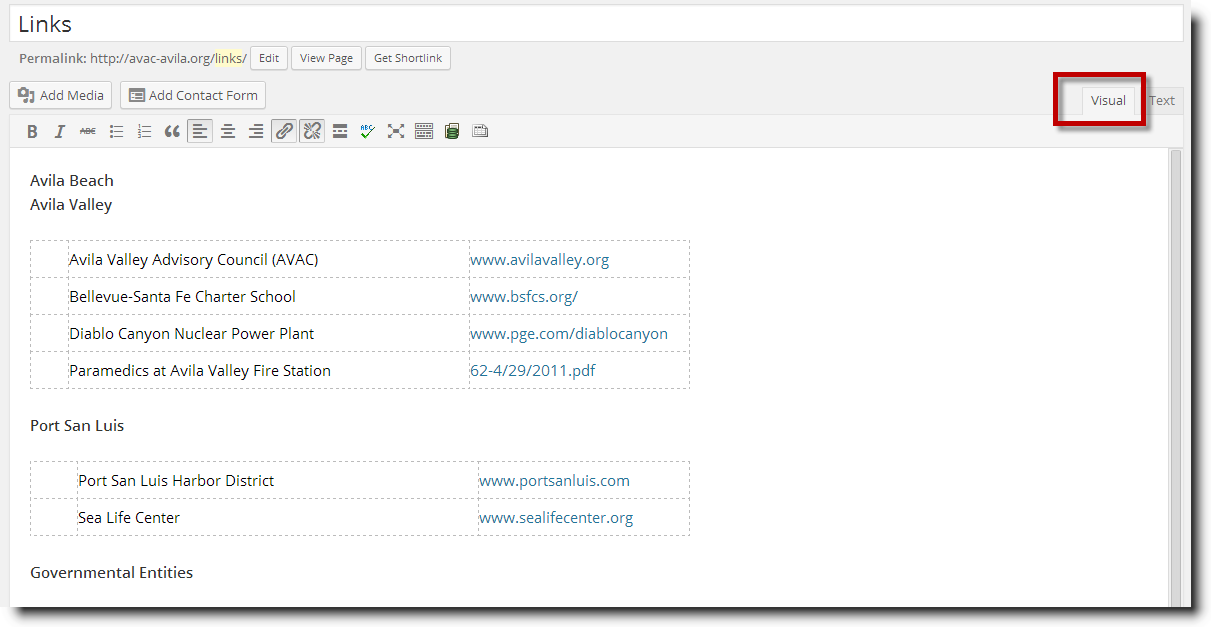
Tables – Links
The Links page uses real HTML tables while the other tables in the Council Members pages use a plugin, TablePress, which provides table like representation but which is easy to update and provides features such as sorting and searching based upon the columns represented.
However, the Links page uses HTML which is not as easy to maintain, but not terribly difficult. WordPress does not provide a WYSIWHG way to maintain tables, so you must code them using HTML and use the Text tab when doing so.
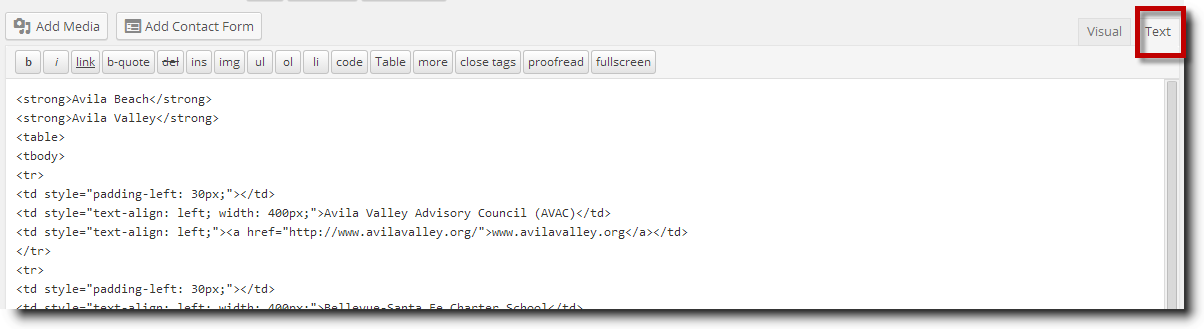
Tables are defined in HTML using the <table> </table> tag set. The <table> tag sets the start of the definition of the table and the </table> tag ends it. In a similar way, the <tr> </tr> set of tags define a row in the table as shown below.
<td style=”padding-left: 30px;”></td>
<td style=”text-align: left; width: 400px;”>Avila Valley Advisory Council (AVAC)</td>
<td style=”text-align: left;”><a href=”http://www.avilavalley.org/”>www.avilavalley.org</a>/td>
</tr>
The <td> </td> set of tags define the cells or columns within each row.
So the above example defines a row with two cells or columns. The first cell has “Avila Valley Advisory Council (AVAC)” in it and the second cell has a link to the website and displays the text “www.avilavalley.org”. The second cell has a set of tags <a> </a> which define the text and subsequent link.
The Links page has several different tables defined to represent the various links. To delete a row in a table, you will need to be in the Text tab and delete the everything including the first <tr> tag through the </tr> tag. To add a row, you will need to copy one of the <tr> . . . </tr> sets to the appropriate location.
Once the HTML code has been set up, you can change to the Visual tab and make the changes to the appropriate cells that you want to exist.